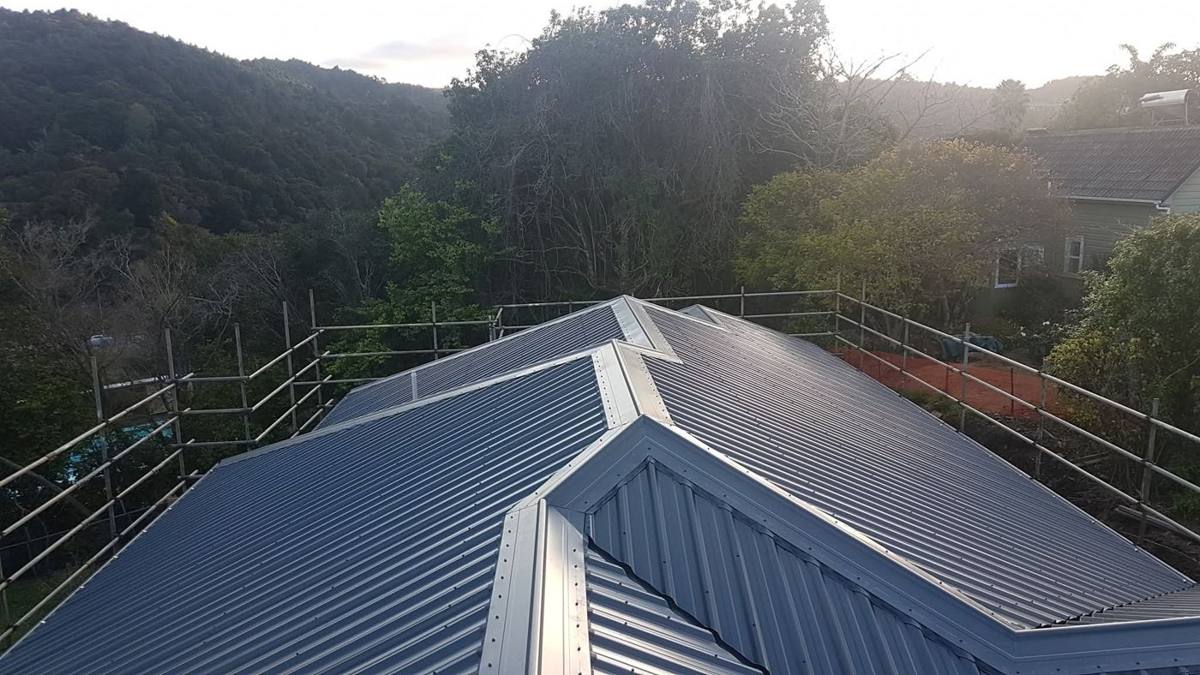
Roof estimating and quoting software for New Zealand roofers.
Half a day gone — the drive, the ladder, the tape, the evening on the spreadsheet — and the job goes to someone else. Quote it from the aerial instead: trace the roof to scale, price it off your own rates, and send a quote the customer can accept on their phone. Ten minutes, without leaving the yard.
14 days free, no card · A worked example is waiting inside · Month to month after that, cancel any time
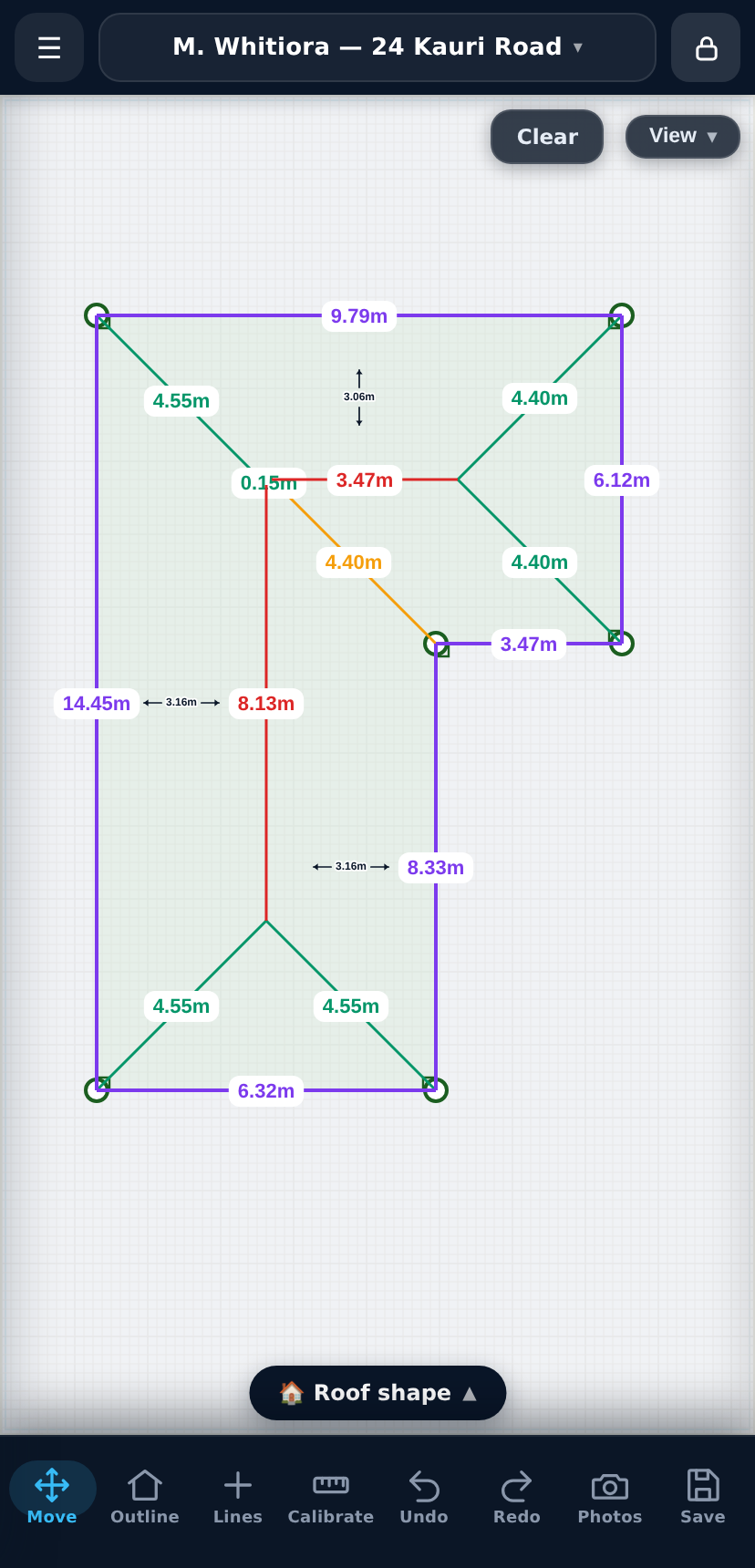
Pick the satellite picture, turn it square, click the corners, choose the roof type. RoofMap draws the ridges, hips and valleys and measures every edge. Two minutes, and nothing to sign up for. The numbers themselves are in the app.
Loading the playground…
The playground saves nothing and sends nothing. When you are ready for the numbers, start free — 14 days, no card.
Start free on one of your roofs
Want the detail? Watch the full six-minute walkthrough — Fergus, the job pack, the order email and the customer's side of the quote. Or read what it changed on one of our own jobs.
Draw the roof. Type the address and RoofMap loads the aerial photo and sets the scale from it. Click the corners of the building; walls snap square, and the ridges, hips and valleys are worked out from the outline and the pitch. Every edge is measured as you go.
Generate the job pack. The same drawing becomes the sheet layout for every plane, the cut list, the flashing schedule and the fixings — and shows where the hip offcuts come from. It goes to the crew as a PDF they can read on the roof.
The customer picks an option. The quote is a six-page proposal with the roof plan on it. The customer chooses steel grade, gauge, guttering or whether the garage is in, watches the total move, and accepts from their phone. You are told the moment they open it and the moment they accept.
Send the material order. Quantities are counted off the drawing and the order goes to your merchant with one button. Linked to Fergus, the job pack goes back to the Fergus job as well.
The same job that used to mean a tape, a spreadsheet, a biro sketch for the crew and three phone calls to the customer.
Trace the outline over the aerial, set one known wall, and every ridge, hip, valley, barge and gutter is measured. The crew gets a plan they can read, not a sketch.
Sheet runs laid out per plane, the flashing schedule, back-trays, fixings. An editable PDF you can change, not a spreadsheet you have to maintain.
The merchant order comes off the same counts that built the job pack. Nothing retyped, nothing counted twice, nothing left off the docket.
A live quote where the customer changes steel grade, gauge and guttering and watches the price move. No ringing you up to ask what it would cost.
Not a generic job-management app with roofing bolted on. Every part of it was built for one trade.
Gable, hip, Dutch gable, mono-pitch, stepped gutters, penetrations — drawn to scale and pitch-corrected, so what the plan says is what turns up on the truck.
How the measuring works →Sheet runs laid out per plane, flashings itemised by type and length, back trays worked out from the penetrations you drew.
Inside the job pack →Your price book, your labour rates, your scaffold. The gross profit sits on screen while you price, not in a spreadsheet afterwards.
Plans and pricing →A real proposal with the roof plan on it. They choose their steel grade, gauge and guttering, watch the total move, and accept from their phone.
See the customer quote →Linked to Fergus today, so quotes and material orders land where your jobs already live instead of being typed in twice.
RoofMap and Fergus →Everyone shares the same jobs, price book and job numbers — and every job says who made it and who sent the order.
Team and Business plans →This is the part most quoting software doesn't have. Draw the roof on your phone or tablet while you're standing on it — and every ridge, hip, valley, barge and gutter is measured as you go, ready for the office before you're back in the ute.
RoofMap came out of a working roofing company in Northland. It was built because quoting a re-roof took an afternoon of tape measures and spreadsheets, and because the material order was never quite right.
Every feature in it earned its place on a real job first. That's why the cut lists match how a roof is actually laid, and why the app works with one hand on a windy roof.

Your estimator, your office manager and your foreman all work off the same jobs, the same price book and the same job numbers. Early-access businesses pay 30% less for their first 12 months, then the standard rate.
Measuring is included on every plan, with no cap. The overseas products charge roughly $40–$65 a roof to measure it for you — twenty roofs a month and you are past $1,000 before you have priced anything.
Month to month, no contract · Cancel any time and stop paying · Your data stays yours
Prices in NZD, excluding GST. Unlimited roofs measured on every plan. Every plan starts with 14 days of Team, free, no card.
The founding rate is 30% off your first 12 months on monthly billing. Prefer yearly? Two months free instead — one or the other, not both.
Fourteen days free, no card. A worked example is already in there — a real re-roof, measured, priced and quoted — so you can see what it produces before you draw anything of your own. 30% off your first 12 months when you do pick a plan.
Start free — 14 days, no cardWould rather be walked through it? Request a 15-minute setup call and we will load your own supplier rates with you.
Already using RoofMap? Sign in